Contents Menu Expand Light mode Dark mode Auto light/dark, in light mode Auto light/dark, in dark mode Skip to content
Orchestra documentation
Light Logo Dark Logo
  • What is Orchestra
  • Quick Start Guide
  • OrchestraOS
    • Welcome to OrchestraOS Documentation!
      • Introduction to meta-orchestraos
      • OrchestraOS Quickstart
      • Supported Hardware
      • OrchestraOS Architecture
      • OrchestraOS Security Architecture
      • Signing Keys Generation
      • OrchestraOS Release Cycle
      • Software Bill of Materials (SBOM)
      • CTHINGS.CO Website
      • Support
      • NXP i.MX Software
    • OrchestraOS Specification
  • Orchestra Manager
    • User Account
      • Creating Account
      • Enabling Two-Factor Authentication (2FA)
      • Profile Settings
    • Set up your tenant
      • Create a tenant
      • Tenant settings
        • Change tenant’s name
        • Change brand color
        • Change header logo
        • See and copy Workspace ID
        • Change square logo
        • Delete tenant
      • Users
      • Machine clients
      • User actions
    • Orchestra Manager
      • Device Management and Performance Monitoring
      • How to add a Device
        • Console access
        • Establishing Internet Access
      • Portability and Compatibility
      • Containerized Application Lifecycle Management
        • CALM Concepts
        • Create a Fleet
        • Create a Composition
        • Make a Release
        • Hello World Tutorial
        • Wirepas Services Tutorial (GUI)
        • Configuring Sink via CLI on Gateway
      • Alerts
  • Command-Line Interface
    • Installation
    • Tenant Change
    • Orchestra Device Manager
    • Containerised Application Lifecycle Management
      • CALM CLI Plugin
      • Hello World Tutorial
      • Wirepas Services Tutorial (CLI)
    • Tips
    • Data Collection Plugin
  • Identity Platform
    • How to Get Orchestra
    • How to add an Application
    • User management
      • Adding new user
      • Joining the tenant
      • Role-Based Access Control
    • Orchestra Subscription Management Guide
      • How Subscriptions Work
      • Subscription Plans
      • How to update billing details
  • Data Collection
    • Data Collection Concepts
    • Asset Statistics Dashboard
    • Floor Plan Dashboard
      • Create Floor Plan
    • Router and SIM Card Dashboard
    • API
    • Getting Started with Data Collection
    • Custom Dashboard in Data Collection
    • Create a mock dashboard
    • Data Collection
      • Data Collection Concepts
      • Asset Statistics Dashboard
      • Floor Plan Dashboard
        • Create Floor Plan
      • Router and SIM Card Dashboard
      • API
      • Getting Started with Data Collection
      • Custom Dashboard in Data Collection
      • Create a mock dashboard
  • Wirepas
  • FAQ

Resources

  • Orchestra Overview Brochure
  • Quick Facts Sheet
  • CTHINGS.CO Website
  • Support
Back to top
View this page

Change square logo

The square logo is shown in tenant lists.

  1. In Tenant settings, click Change in the Square logo section.

  2. Choose the logo from your device.

  3. Click Save in the Changes made pop-up.

Note

The square logo must be a JPG, PNG or SVG file, no larger than 1 MB.
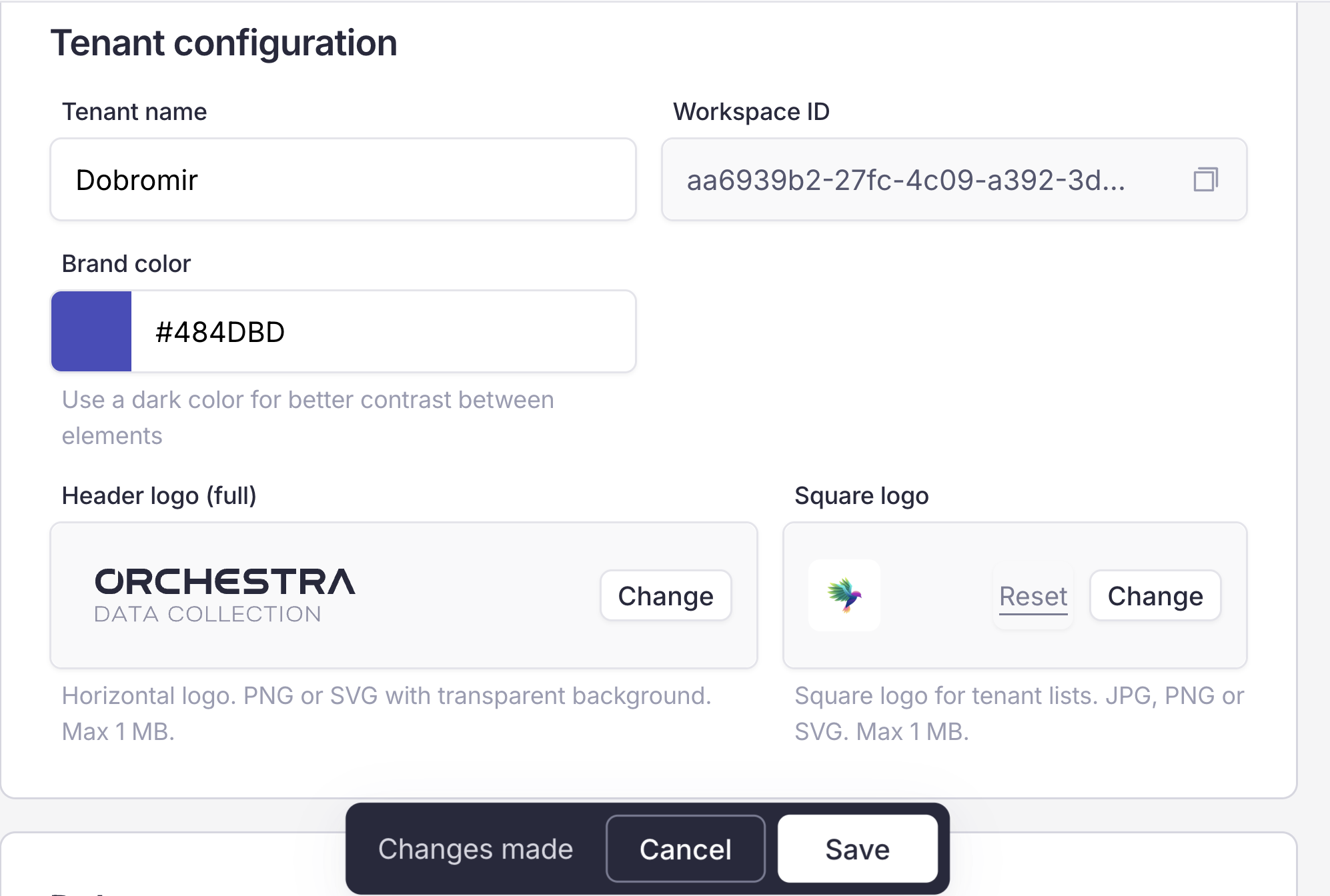
Square logo change

Square logo change

Next
Delete tenant
Previous
See and copy Workspace ID
Copyright © 2025, CTHINGS.CO®
Made with Furo