Enabling Two-Factor Authentication (2FA)
Important
Two-Factor Authentication (2FA) is an additional layer of security for your account. It requires you to provide a second form of verification, in addition to your password, when logging in. This helps protect your account from unauthorized access.
This chapter will help you to enable and start using Two-Factor Authentication (2FA) in Orchestra Manager.
Hint
Before you start, choose an authentification app (such as Google Authenticator, Authy, or Microsoft Authenticator) and install it on your mobile device. You will need it later to scan the QR code and generate verification codes.
Where to find the 2FA
Go to your profile settings by clicking on your profile picture and name in the top right corner of page, then selet “Profile Settings”. At the bottom of the page, you will find “Manage 2FA TOTP Authenticator App”. There you can find QR code to scan with your application, or a code you can type in (Authenticator app secret)
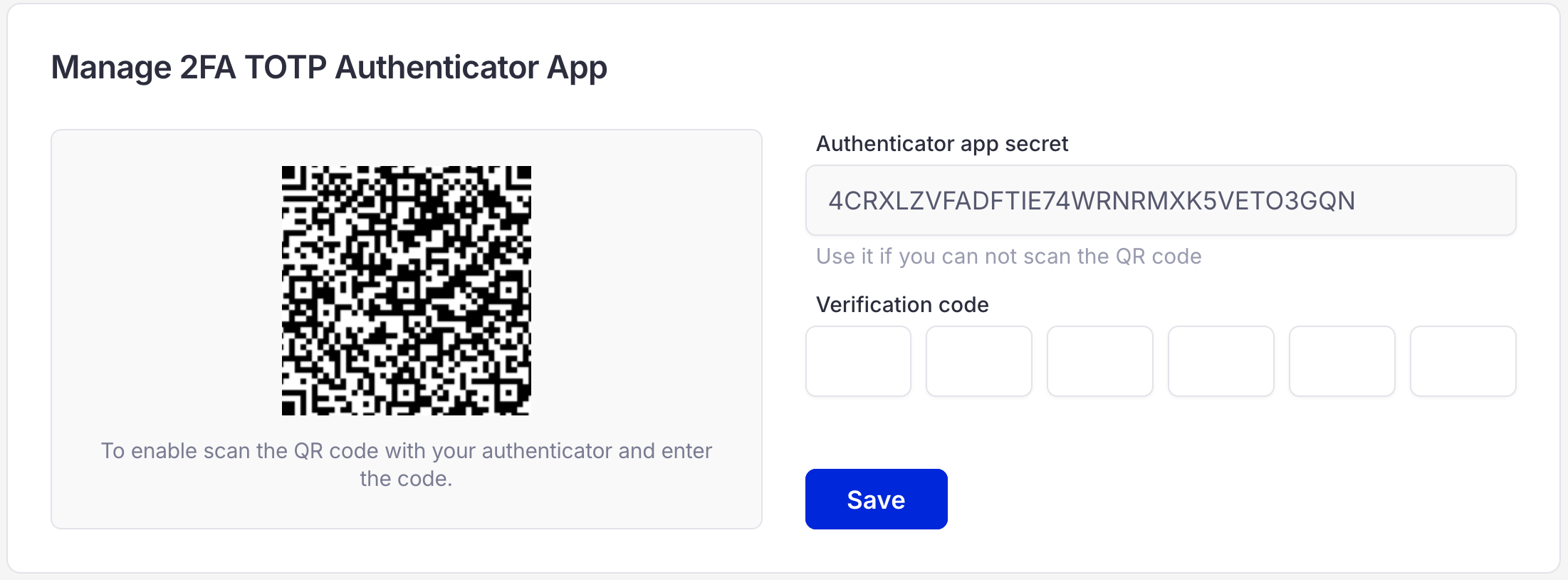
How to enable 2FA
Go to your authentification app and select the option to add a new account
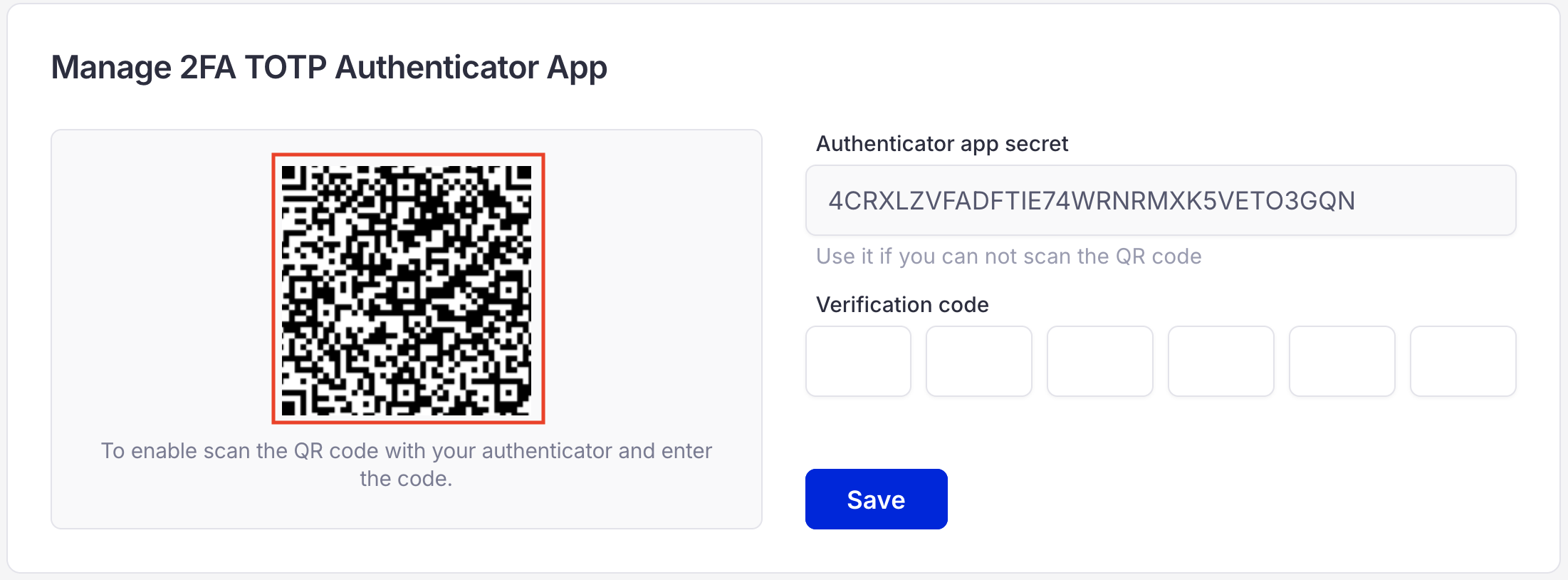
With QR code
Choose the option to scan a QR code and use your device’s camera to scan the QR code displayed in Orchestra Manager.
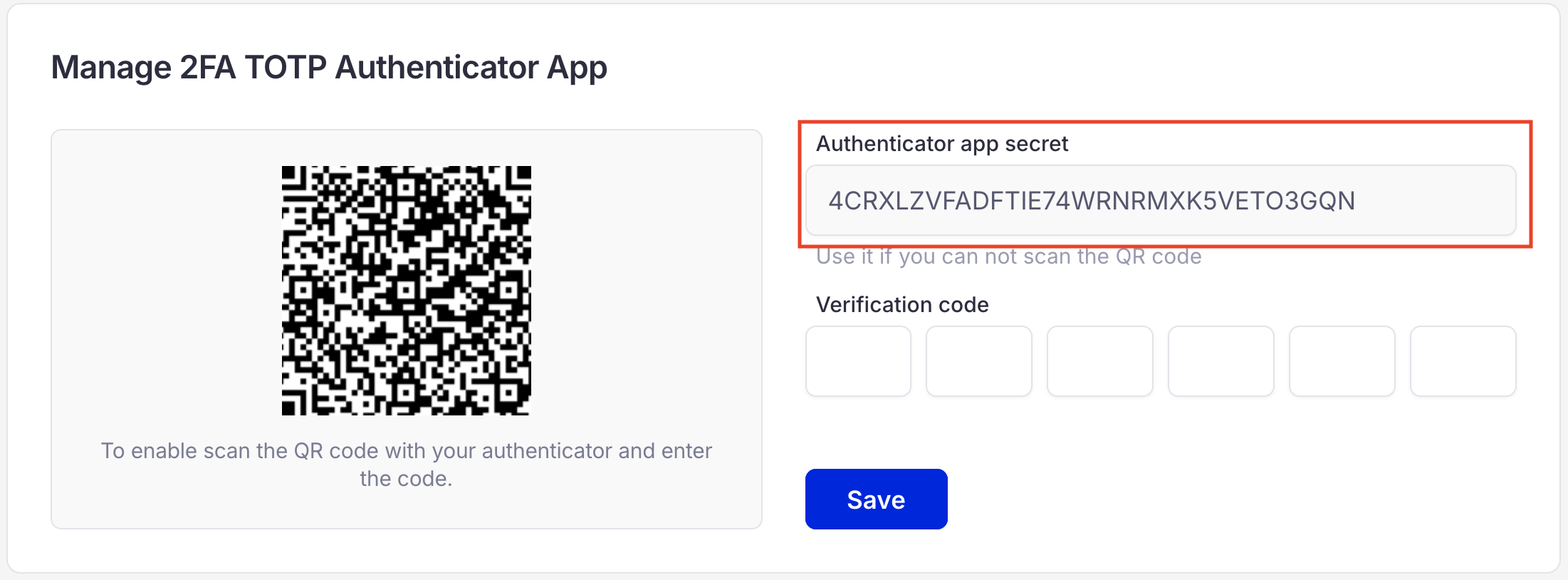
With code (Authenticator app secret)
Copy the code displayed in Orchestra Manager and paste it into your authentification app.
The app will generate a 6-digit verification code that you will need to enter in Orchestra Manager to complete the setup. Type 6-digits you have received and press “Save”
If you succeeded you will see that your 2FA application is now connected.
