Creating Account
This chapter will help you to create an account in Orchestra Manager.
Hint
Before you start, prepare your email (as Gmail or Outlook), you will need it later to verify your email address.
Sign up for an account
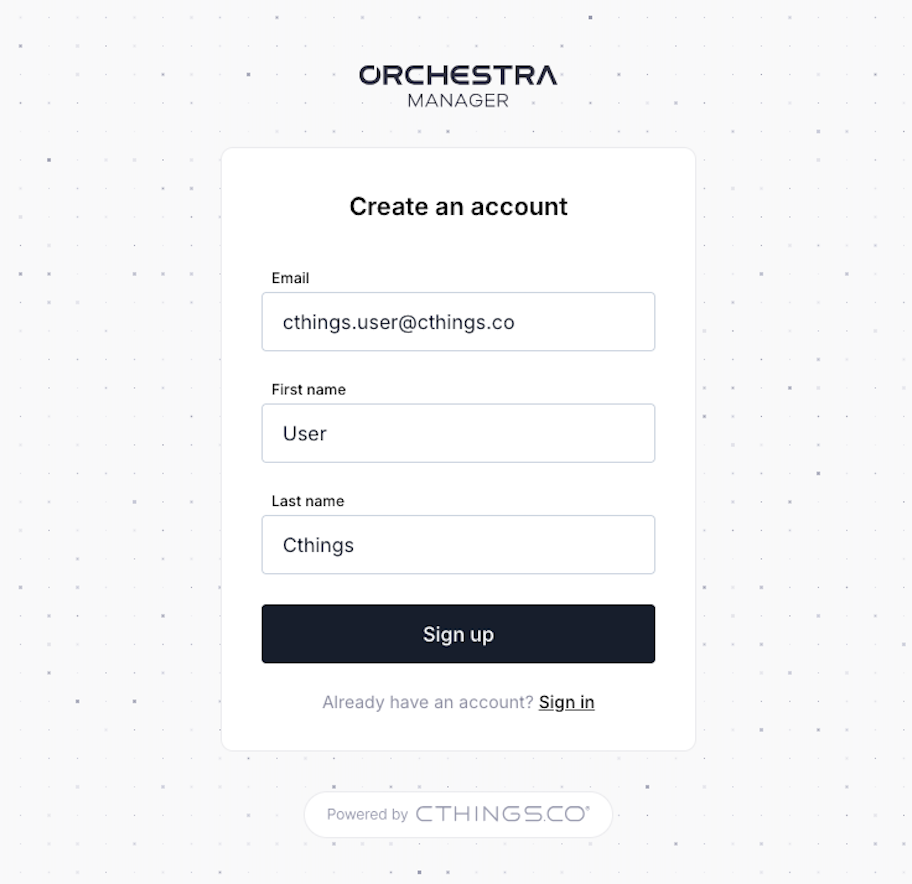
Go to the Orchestra Manager login page <-CHANGE LINK BEFORE DEPLOYNING. Fill in the required information (email, first and last name) and press “Sign up”.
Note
Make sure to use a valid email address, as you will need to verify it later.
Make a password
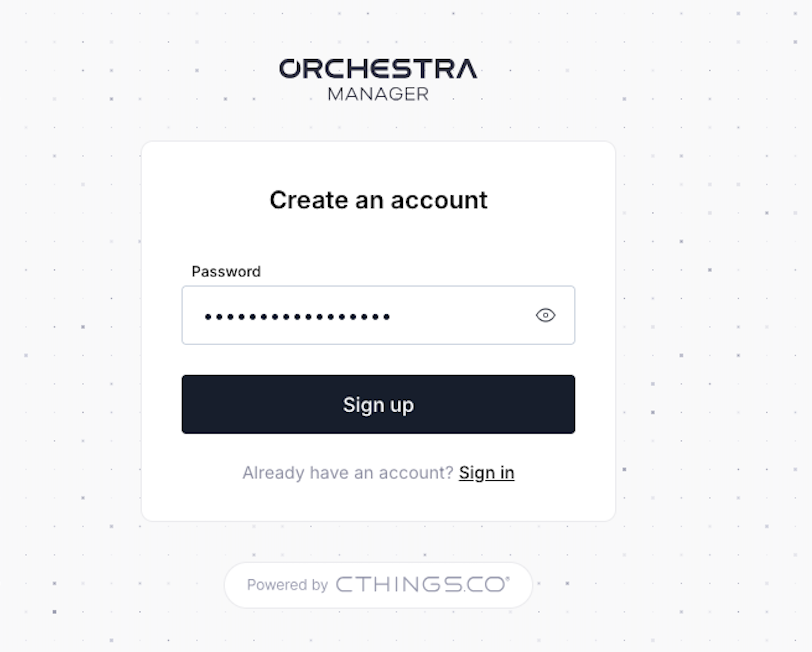
After you press “Sign up”, you need to specify your password.
Caution
We recommend using a password manager to generate and store your stong password.
Verify your email address
After this step, you will receive an email with 6-digit verification code. Enter the code and submit it to verify your email adress. If you did not receive the email, check your spam folder or click “Resend code”.
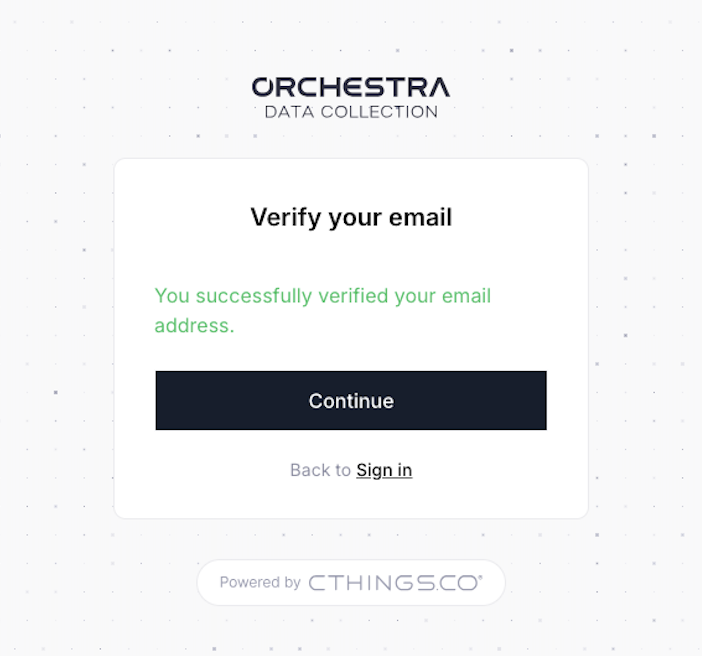
Congratulations! You have successfully created your account in Orchestra Manager. Now you can log in and start using the platform. Check next chapters to learn how to enable 2FA and manage your account settings.
Important
Two-Factor Authentication (2FA) is an additional layer of security for your account. It requires you to provide a second form of verification, in addition to your password, when logging in. This helps protect your account from unauthorized access.